Skip to content
LapminJoin a lesson

AI for teachers

How Lapmin works in a teacher-⁠led lesson

Teachers start a lesson and see which students need help. Students use Lapmin only during that lesson and do their own work. The aim is for students to be able to use Lapmin at home in the future, too.

Request a demo

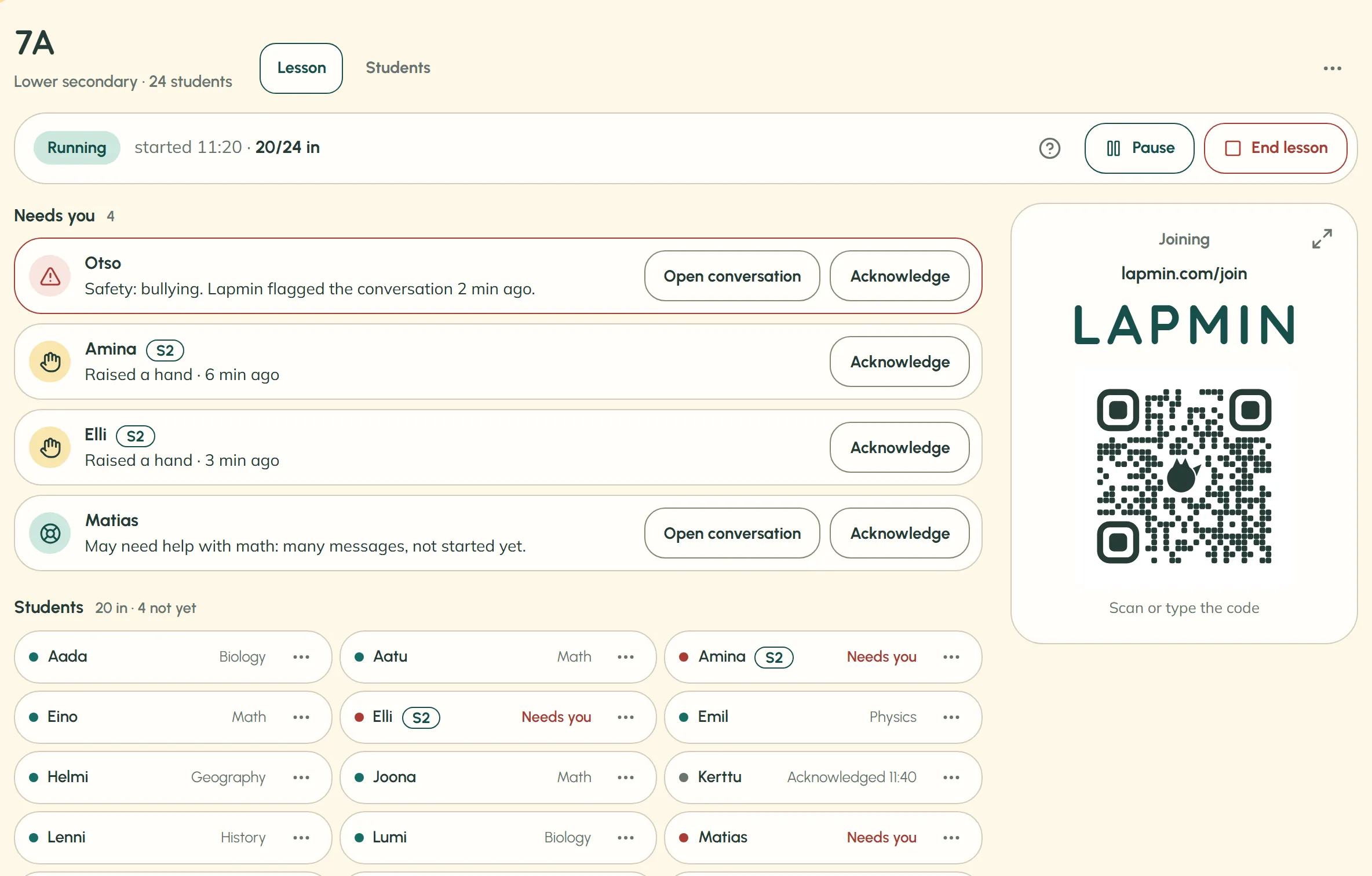
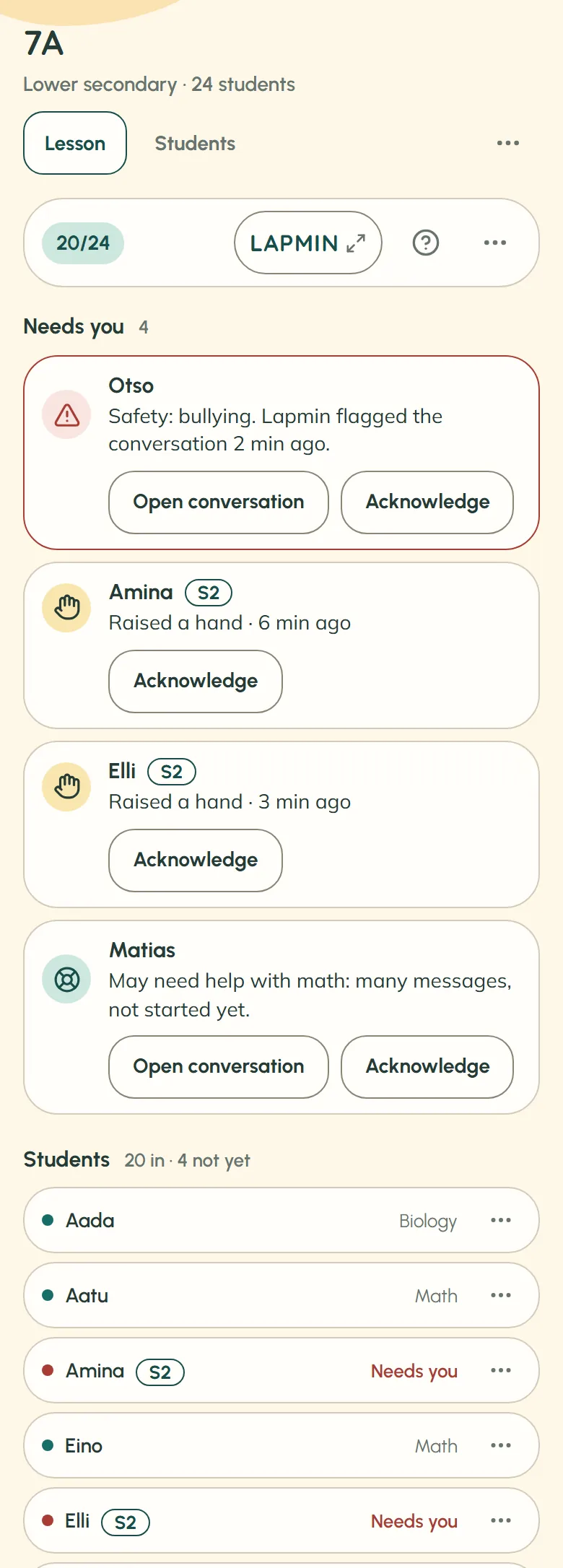
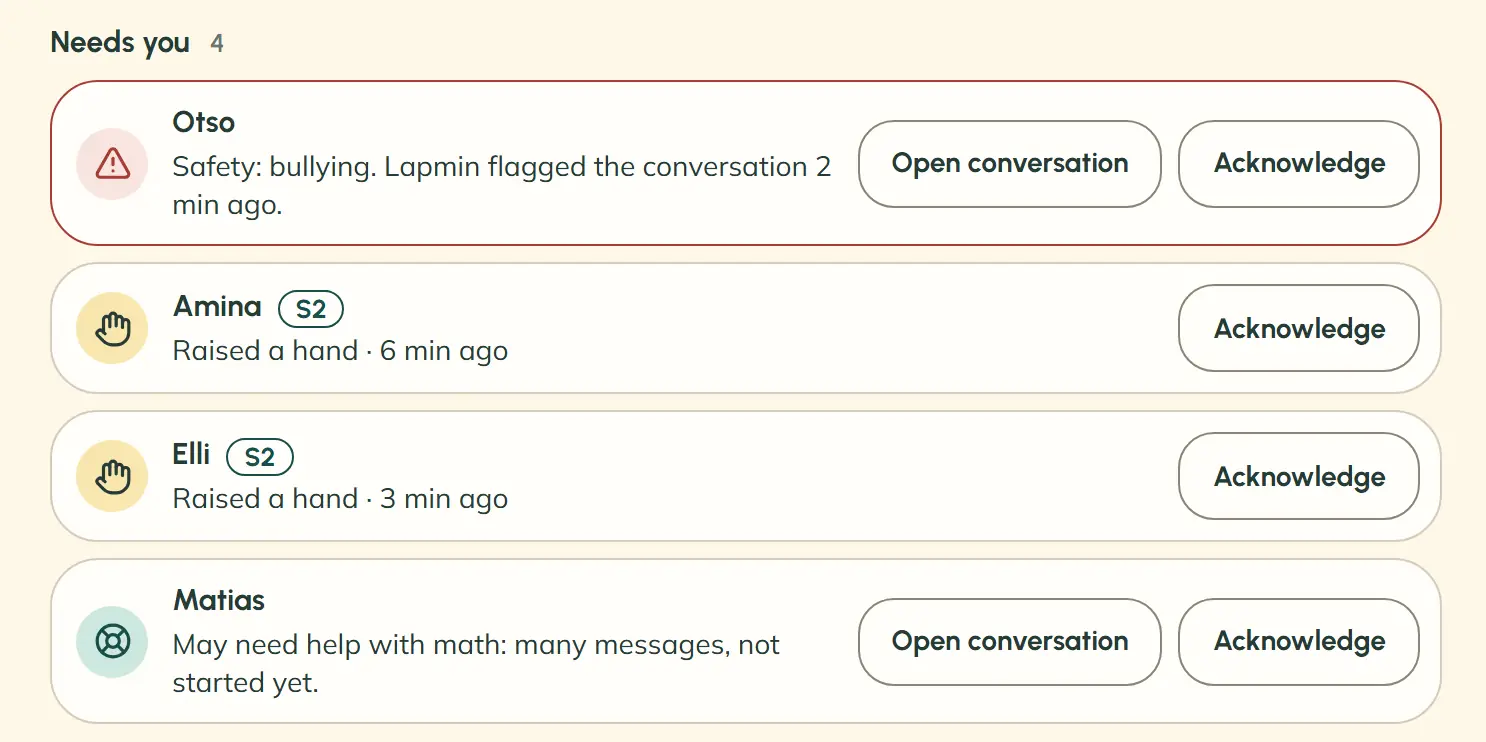
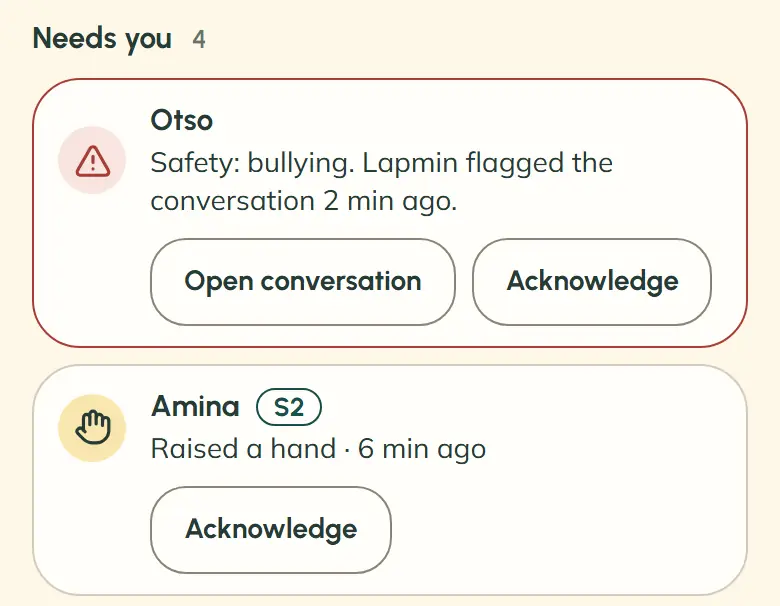
The teacher’s view during a lesson. The “Needs you” list has one safety flag, two raised hands and a student who may need help. A joining card shows a code and QR code; the first rows of the class roster are also visible. Demo class names are fictional.The teacher’s lesson view on a phone shows class 7A, 20 of 24 students in the lesson, and the top of the “Needs you” list with a safety flag and a raised hand. The names are fictional.

Teacher tools

The “Needs you” list shows a safety flag, two raised hands and a student who may need help. Rows have “Open conversation” and “Acknowledge” buttons, or just “Acknowledge”. The demo class names are fictional.In the phone view, a safety flag has “Open conversation” and “Acknowledge” buttons. Below it, a raised hand has an “Acknowledge” button. The names are fictional.

The lesson and the “Needs you” list

Teachers see raised hands and Lapmin’s flags in the “Needs you” list. They can open a conversation Lapmin has flagged, but cannot read the others. Students join with a code and use Lapmin only in the lesson their teacher has started.

Read about the lesson and the “Needs you” list
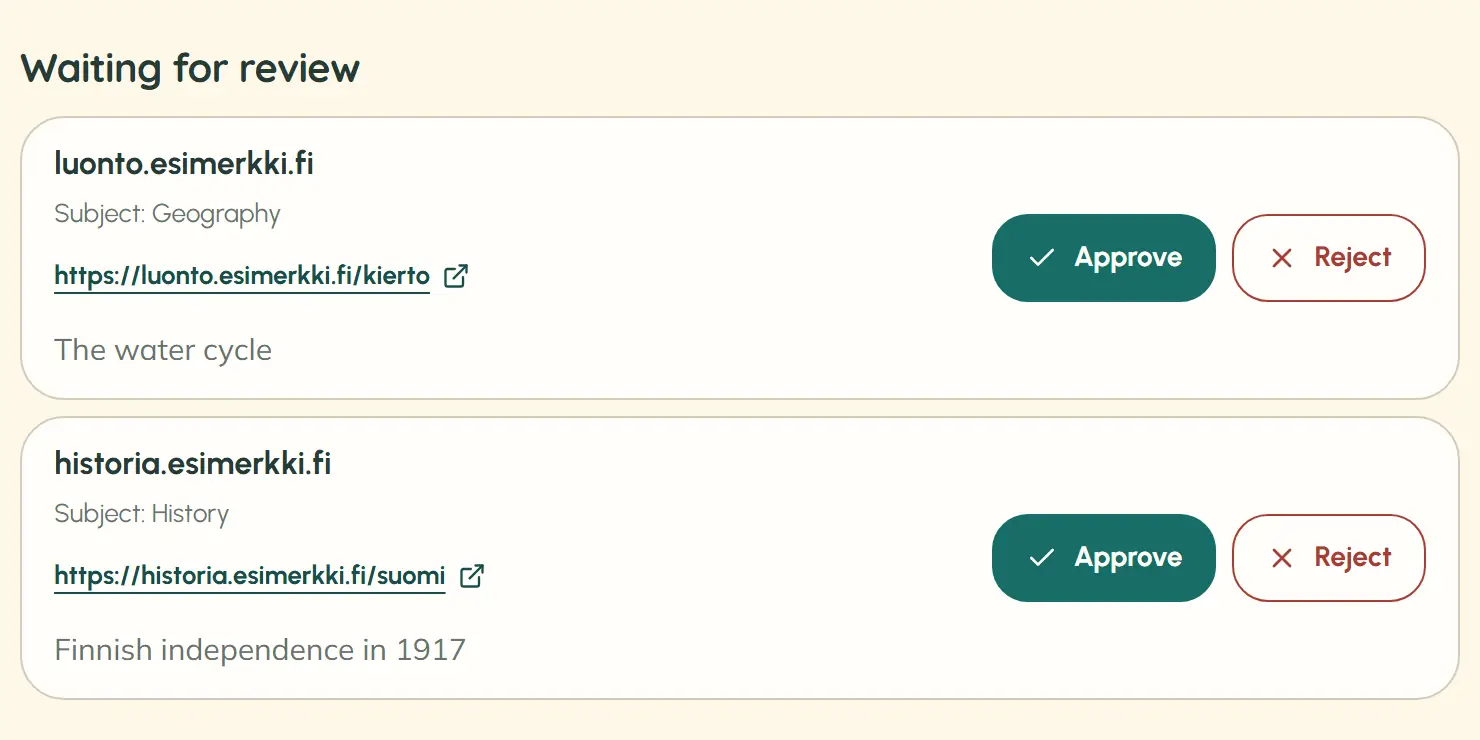
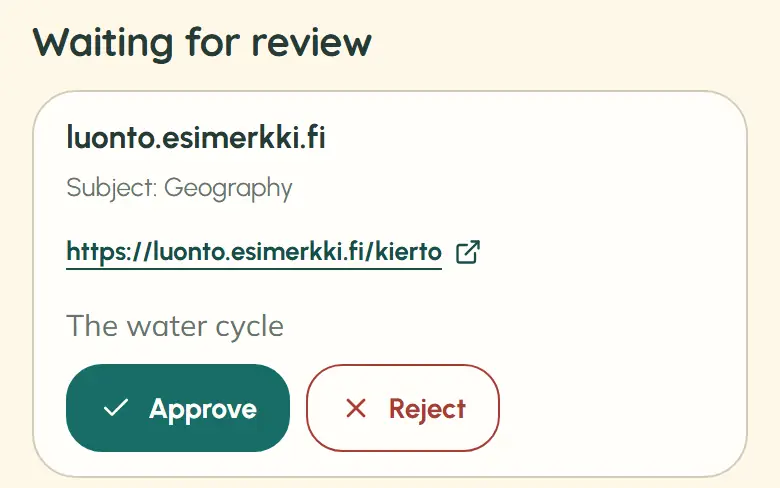
Two suggested websites await a decision in the teacher’s source review. Their domains, “Subject: Geography” and “Subject: History” rows, sample links, page titles, and “Approve” and “Reject” buttons are visible. The websites are examples.The teacher’s source review shows one suggested website, with its domain, subject row, sample link, page title, and “Approve” and “Reject” buttons. The website is an example.

Sources students can check, reviewed by teachers

When an answer includes a source, students see it below the answer and can check it. After Lapmin uses a site that is not yet on its source list, it suggests that site for teachers to review. A teacher’s decision applies to the entire domain. Students can compare the answer with its source and assess its accuracy – part of AI literacy.

Read about sources and teacher review
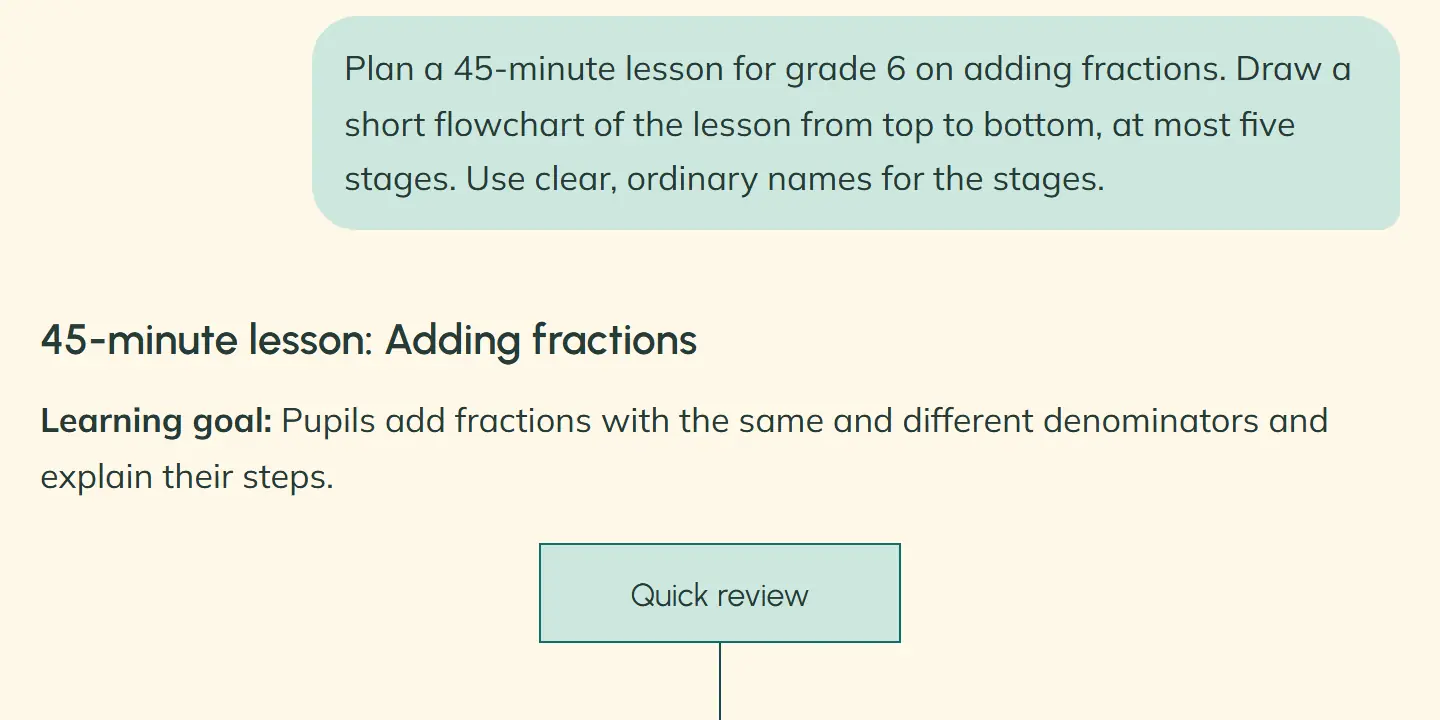
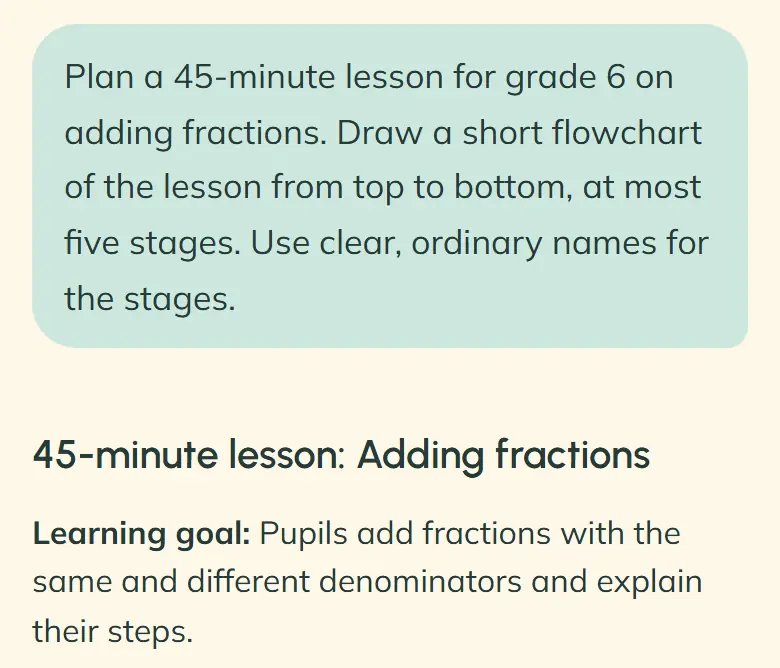
In OpeAI, a teacher asks for a 45-minute grade 6 lesson on adding fractions and a short diagram of up to five lesson stages. The reply begins with a lesson title and goal. The first stage of a flowchart, Quick review, is visible below.A teacher’s OpeAI request on a phone asks for a 45-minute grade 6 lesson on adding fractions and a short diagram of its stages. The reply begins with the lesson title and goal.

OpeAI for lesson planning

OpeAI is a teacher’s own AI chat. It helps with lesson planning, questions about using Lapmin and more. It can draft material and draw diagrams, for example. It cannot see students’ conversations or Notes.

Discover OpeAI
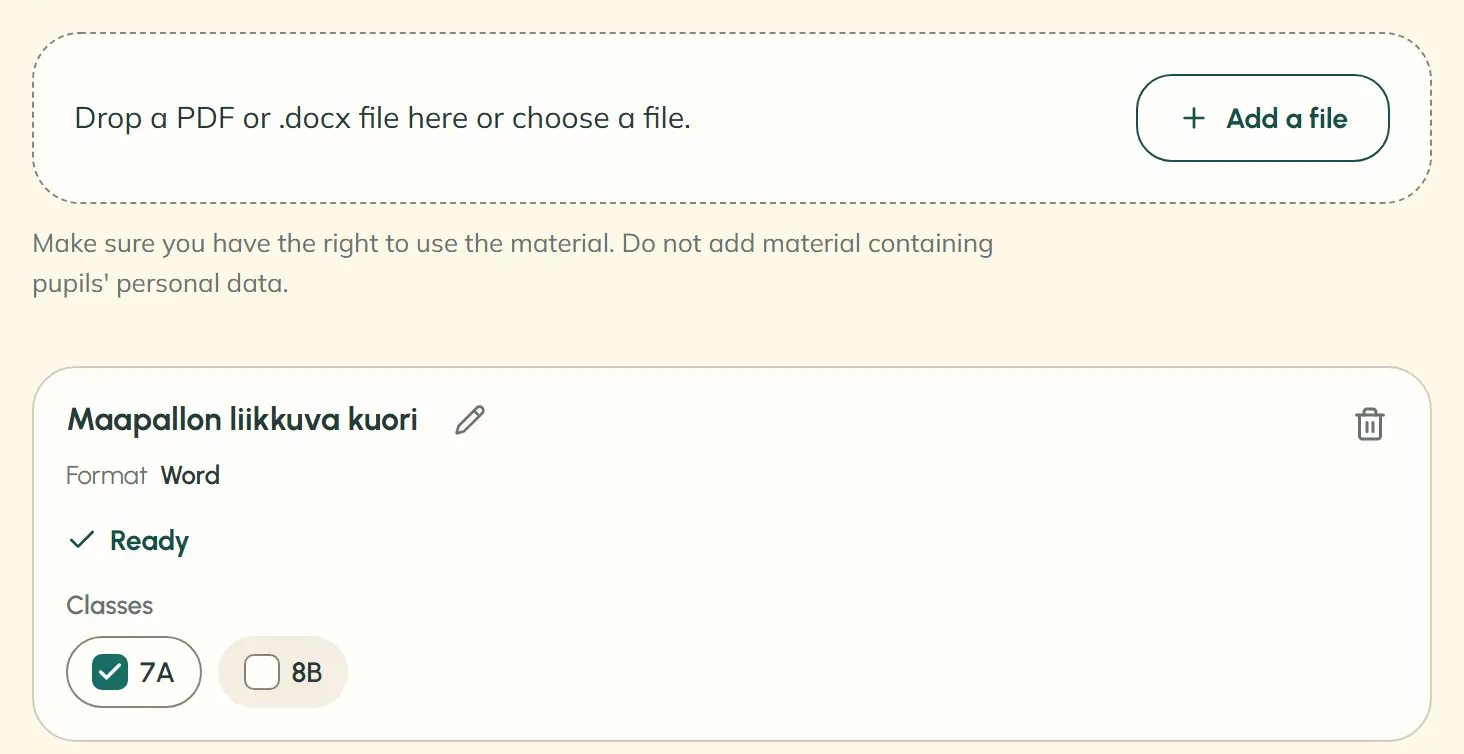
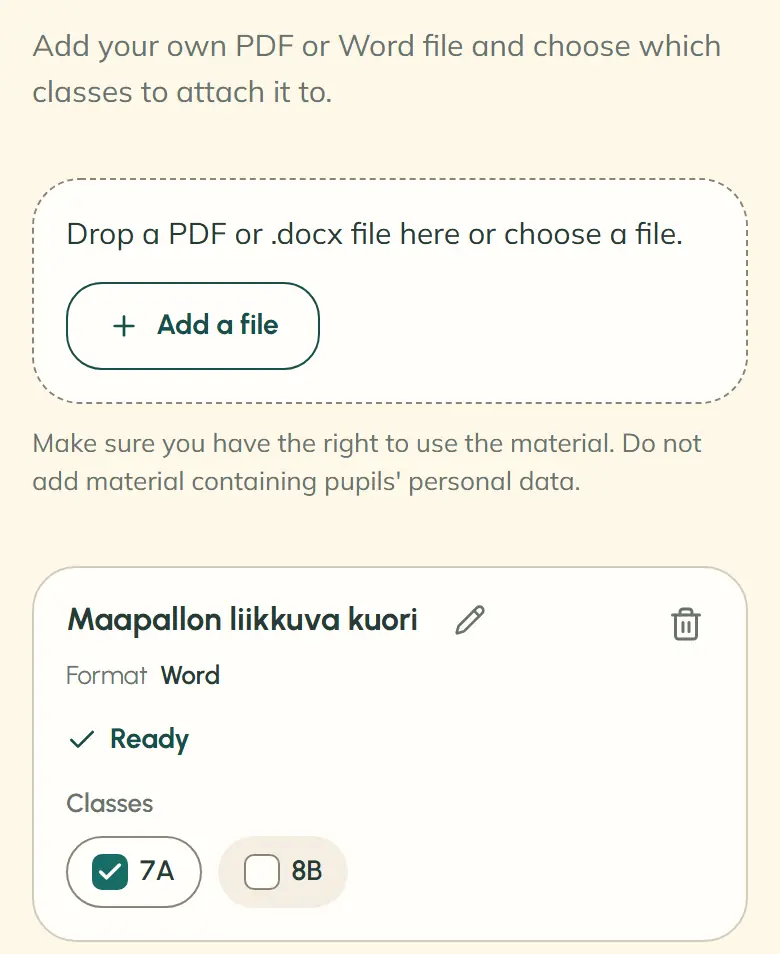
The upload area invites teachers to drop a PDF or .docx file or choose one, with a button to add the file. Below it is a notice about usage rights and pupils’ personal data. The first material, “Maapallon liikkuva kuori,” is a ready Word file: 7A is selected, 8B is not.The phone view of the Materials page begins with the line about adding your own PDF or Word file and choosing which classes to attach it to. Below are the upload area with its “Add a file” button and the notice about usage rights and pupils’ personal data. The first material, “Maapallon liikkuva kuori,” is a ready Word file: 7A is selected, 8B is not.

Teacher materials

Teachers can add their own PDF and Word files and choose which classes to attach them to. Lapmin uses the text as background when answering pupils in those classes. Beneath the answer, pupils see the material’s name and chapter when one is found.

Student work

A student asks for help planning an essay about the fall of the Roman Empire. Lapmin mentions several causes and the split of the empire’s lands into smaller states. Its reply has a numbered source, questions about the essay’s beginning, middle and end, and a question about which of them to answer first.

Factual answers and guidance through assignments

Lapmin answers factual questions directly. When students must solve a problem or write text they submit, it guides them without supplying a finished answer, even if they ask repeatedly. It does not write essays or other text students submit.

See how Lapmin answers
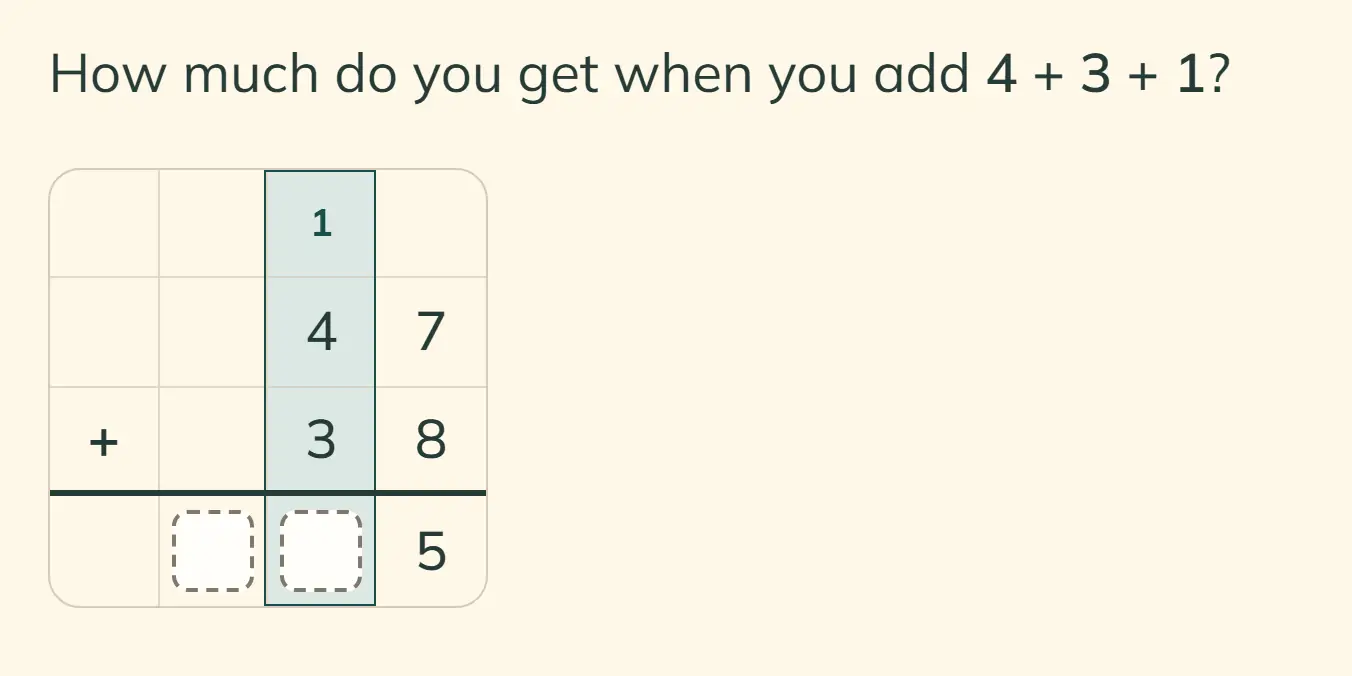
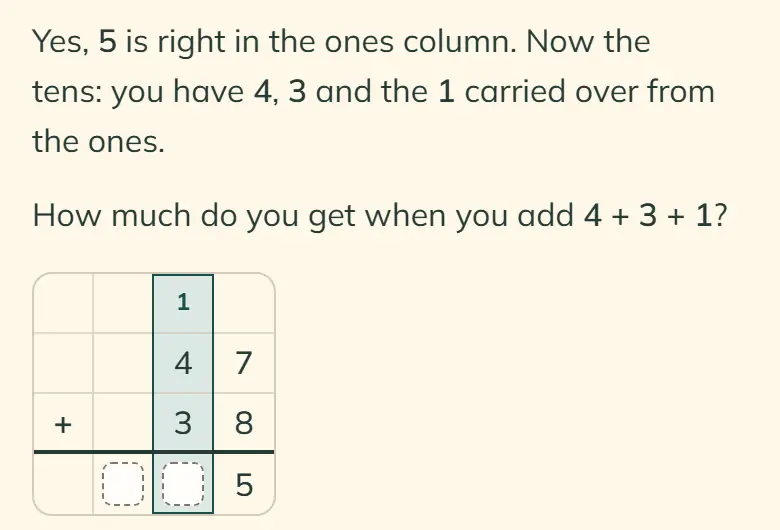
Lapmin asks the student what 4 + 3 + 1 equals. A grid shows 47 above 38, an entered 5 in the ones column, a carried 1 above the tens column and the highlighted tens column.Lapmin confirms the 5 in the ones column and asks what 4 + 3 + 1 equals. The grid shows 47 above 38, the 5, a carried 1 and the highlighted tens column.

Step-by-step maths with a column grid

For addition, subtraction and multiplication, Lapmin can draw a column grid. It does not solve the problem for the student but asks them to work out the next step. It checks the steps it can recognise by calculating them.

Explore maths guidance and the grid
The “Class school level” dialog offers “Primary school” and “Lower secondary”. “Lower secondary” is selected, with “Cancel” and “Save” buttons below.

Answers for grades 1–6 or 7–9

Teachers set each class to “Primary school” or “Lower secondary”. The choice affects the length, vocabulary and concreteness of Lapmin’s answers. In Swedish and English, it also changes the language level.

See how the grade setting shapes answers
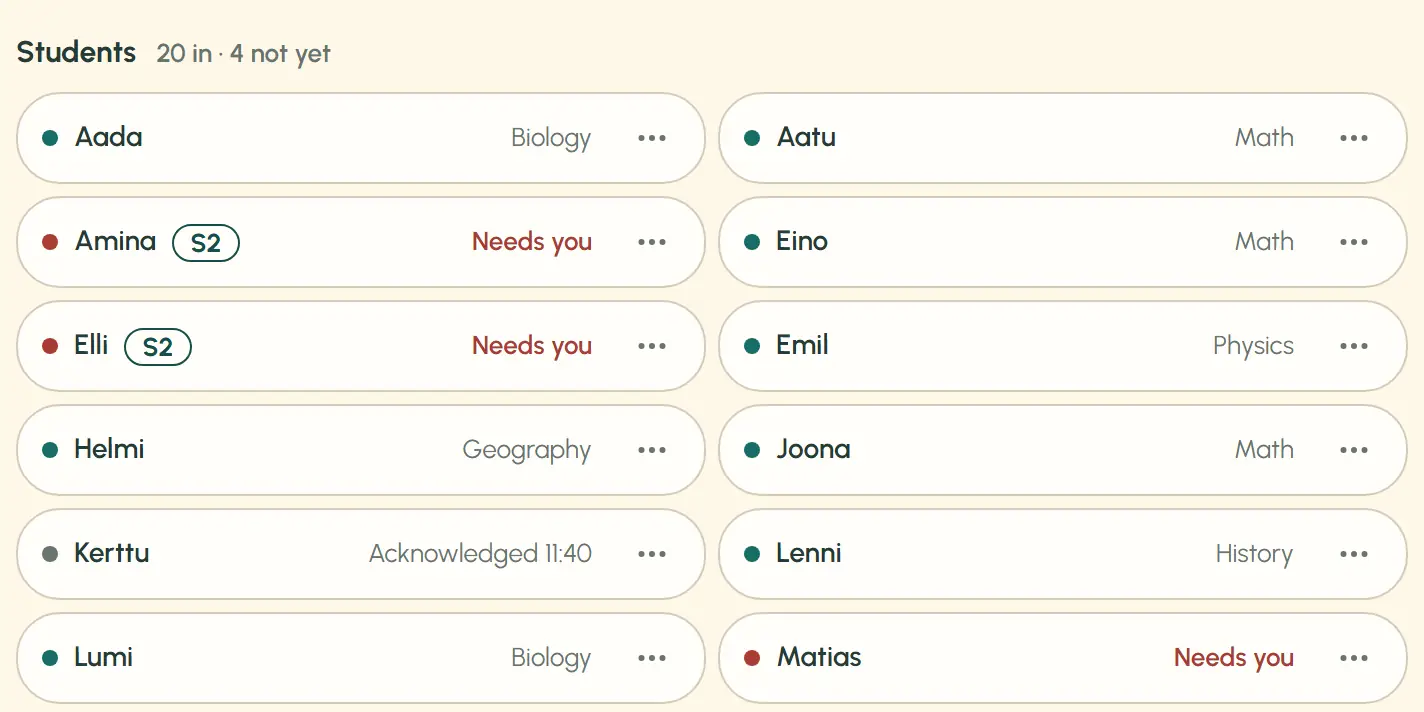
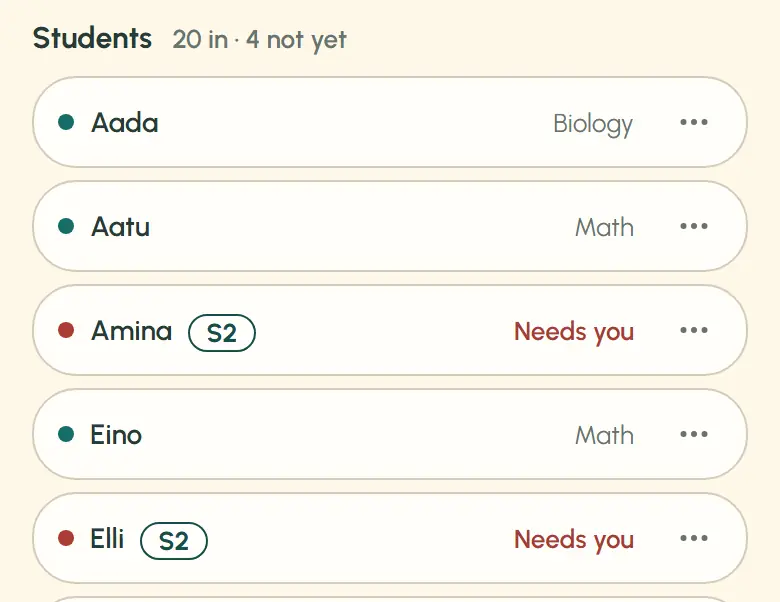
The teacher’s roster shows first names in two columns. Amina and Elli have an S2 mark beside their names. Each row shows a subject or the text “Needs you”. The demo class names are fictional.The first five roster rows are visible. Amina and Elli, in the third and fifth rows, have an S2 mark. The names are fictional.

Finnish as a second language (S2)

In Finland, S2 is the Finnish-as-a-second-language syllabus. Teachers assess whether a student needs it, and a parent or guardian makes the choice. The teacher then marks the student in Lapmin, which adjusts how answers in Finnish are written.

Learn how Lapmin answers students marked S2
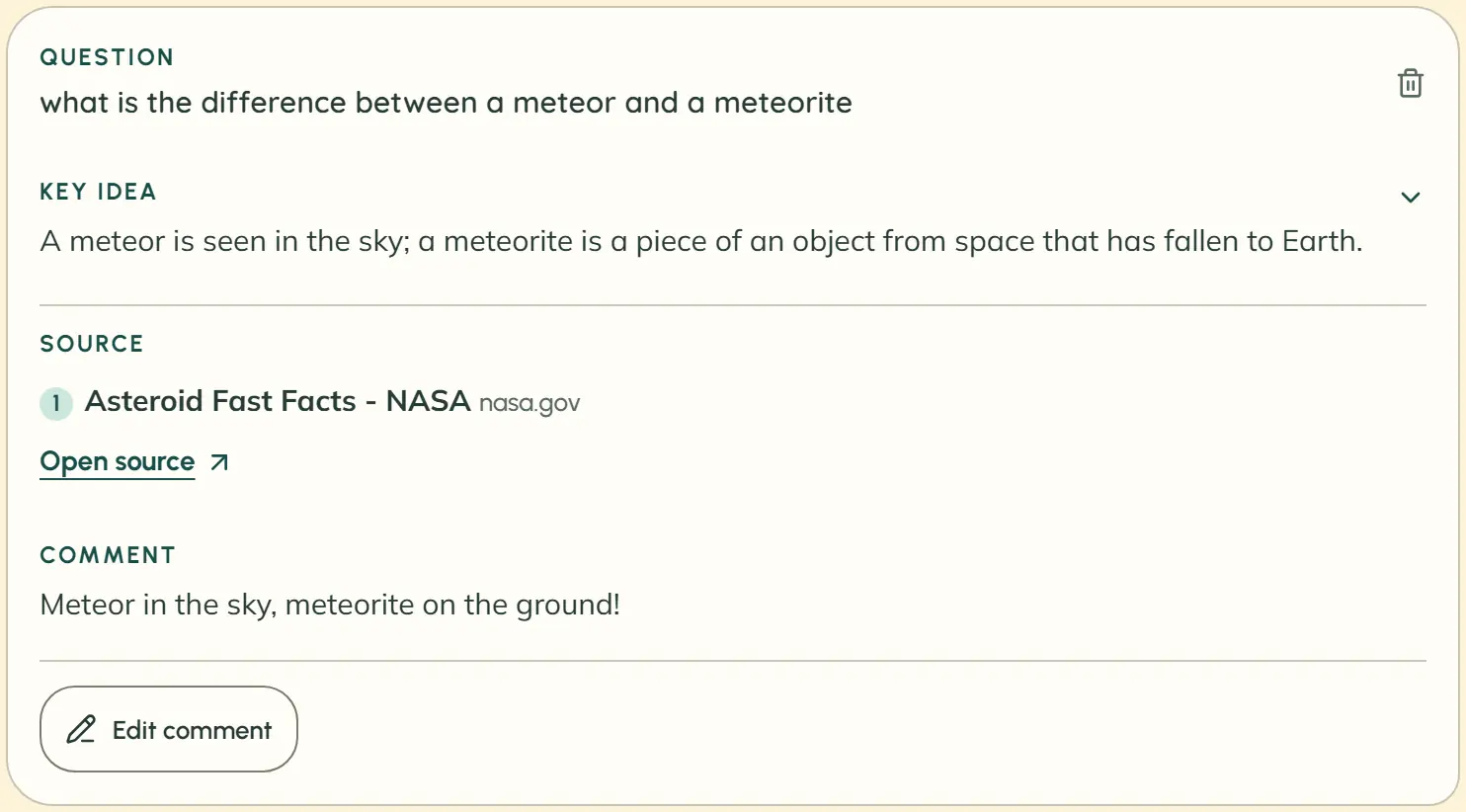
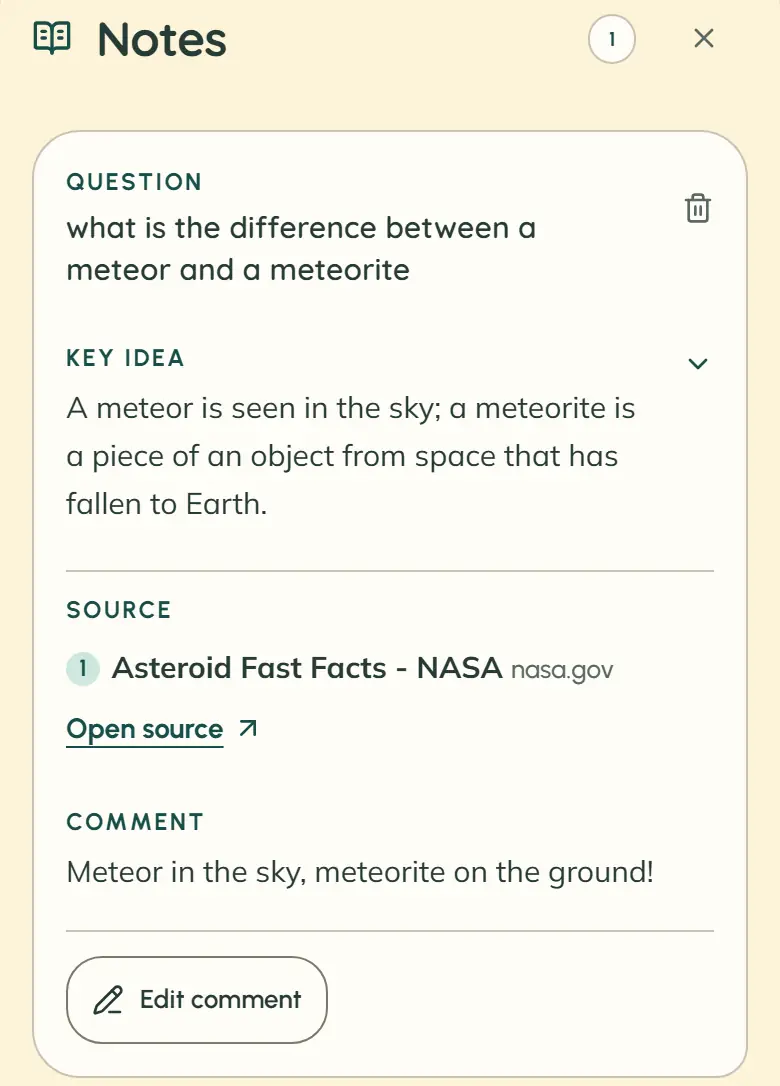
A saved note shows the question, the answer’s key idea, a numbered source with a link and the student’s comment. An “Edit comment” button is visible.The student’s “Notes” view shows one saved note with a question, key idea, numbered source and personal comment.

Students’ private Notes

Students can save an answer in Notes and add their own comment. Teachers cannot see these notes. They remain when the teacher ends the lesson and its conversations are deleted.

Find out how Notes work

Teacher accounts are by invitation from Lapmin. If you have an invitation, use Teacher sign-in. Teachers can also send feedback to Lapmin from their own view.

Interested?

Your message goes to team@lapmin.com, and we’ll reply by email. We can then arrange a demo or a pilot.

We’ll reply to this address.

We use the information in this form to reply and arrange a demo or pilot. Read how we handle your information