The lesson and the “Needs you” list
Teachers can see who needs help during a lesson
The “Needs you” list brings together raised hands and Lapmin’s flags as students work. Teachers start their own lessons and can pause or end them.
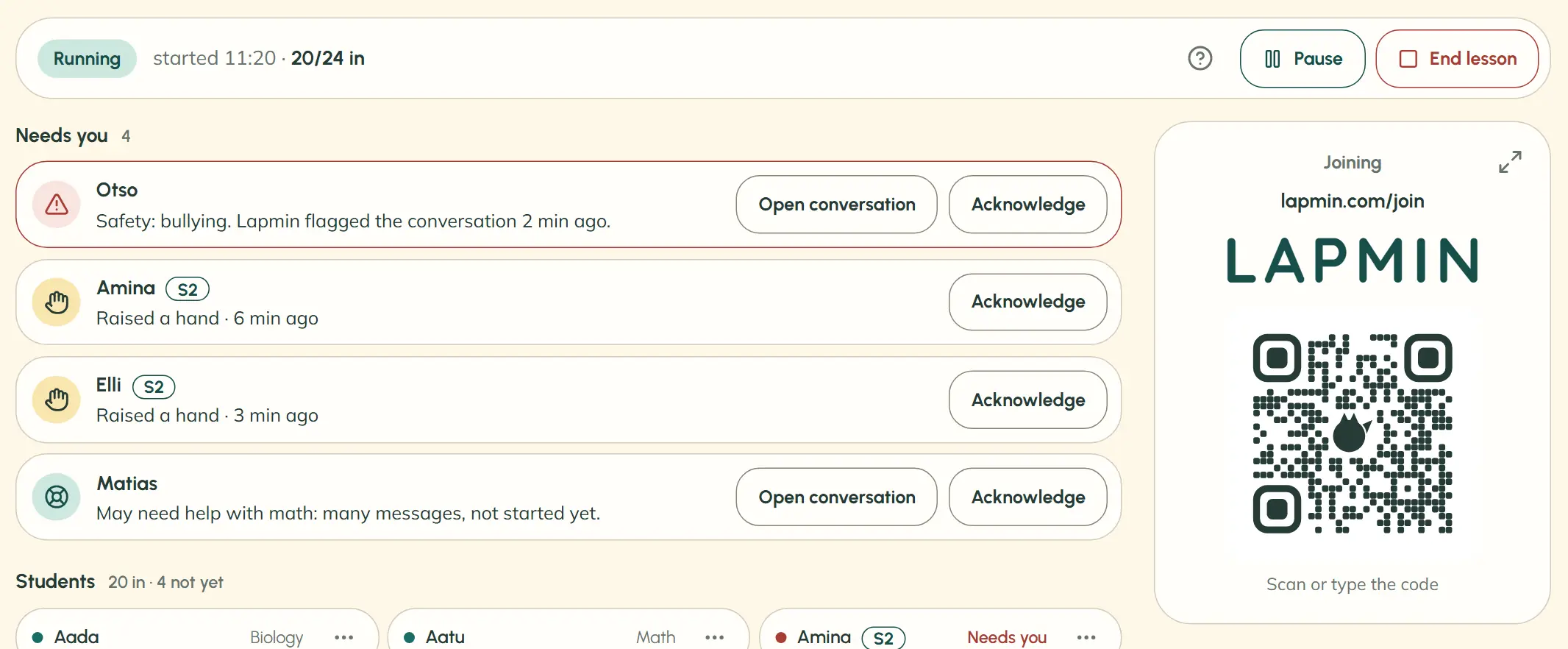
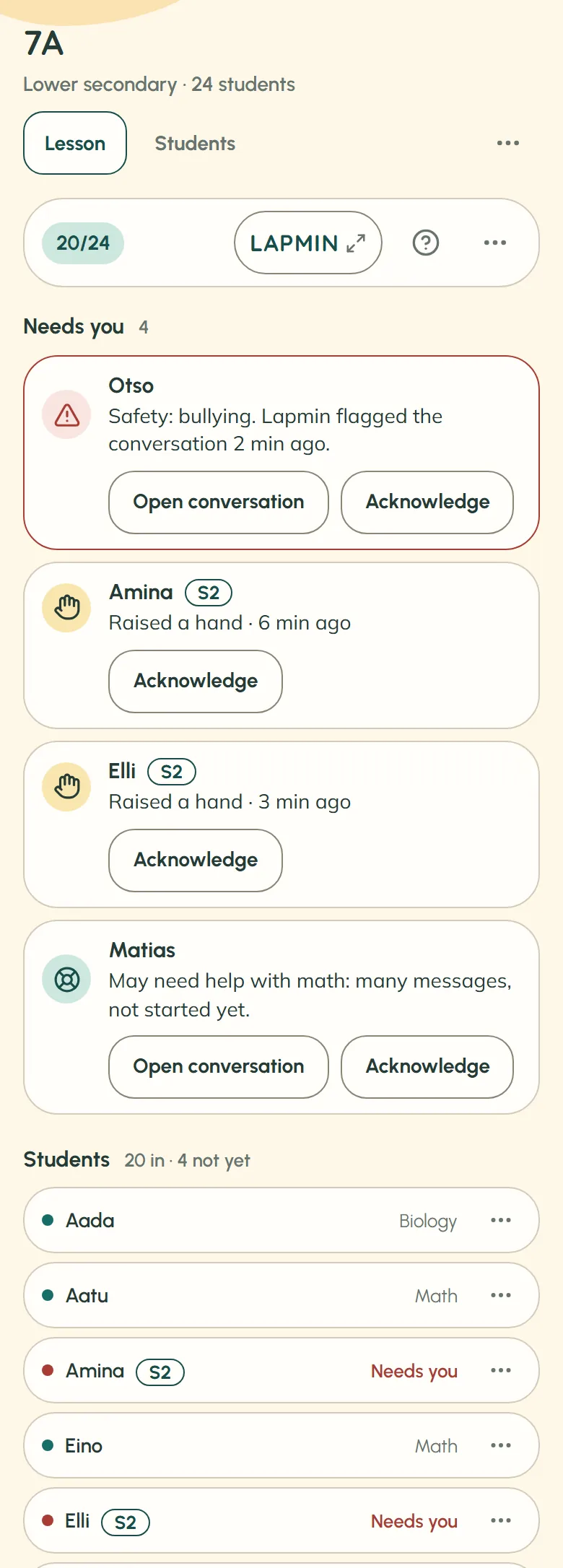
Teachers start their own lessons and can pause or end them. During a pause, students can see their conversations but cannot send messages, and nobody can join. When a lesson ends, or closes automatically about a day after it starts, its conversations are deleted. The class, roster and students’ private Notes remain; teachers cannot see those Notes.
The “Needs you” list shows which students may need the teacher. Safety flags appear first, followed by raised hands and attempts to join from another device. Last are students who have sent many messages about one topic without getting started.
Teachers see flags but not conversations, unless Lapmin has flagged them. They can open only one flagged conversation per student. The roster also shows each student’s subject.
Why this way. The OECD recommends using AI in learning activities that teachers have planned with care. Lapmin is designed for a lesson the teacher starts and can pause or end.
Read the sourceSource: OECD 2026, Digital Education Outlook · recommendation
How a teacher-led lesson works
- 1
The teacher creates a class and starts the lesson
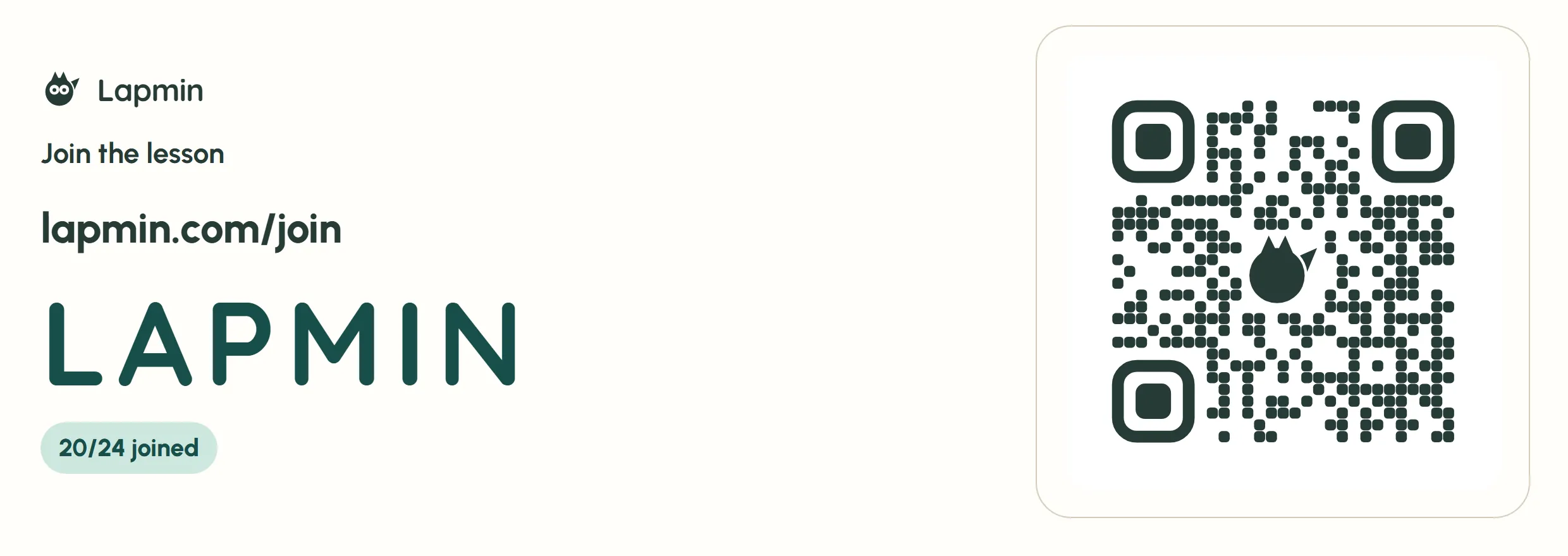
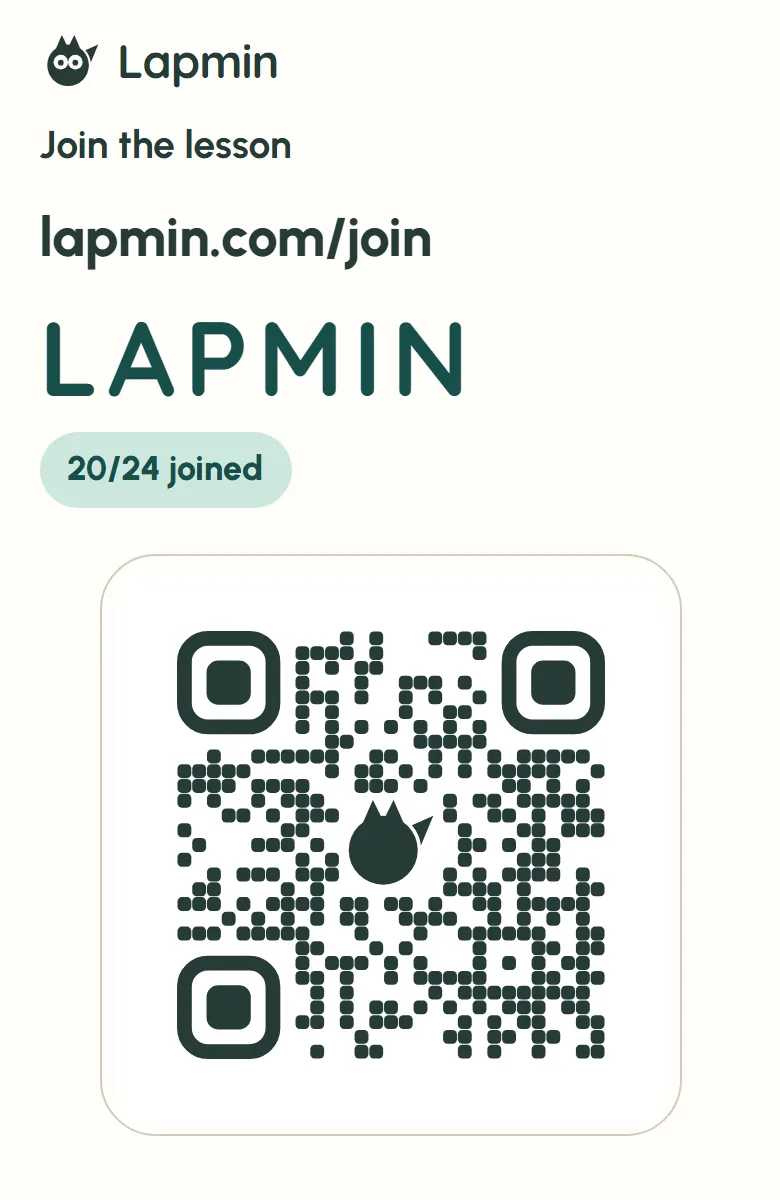
The teacher pastes in students’ names, for example from the school’s student information system, and chooses “Primary school” (grades 1-6) or “Lower secondary” (grades 7-9). When the teacher starts the lesson, Lapmin gives it a six-character code. The teacher’s view shows the join code and a QR code to display on a projector.
- 2
Students join the lesson
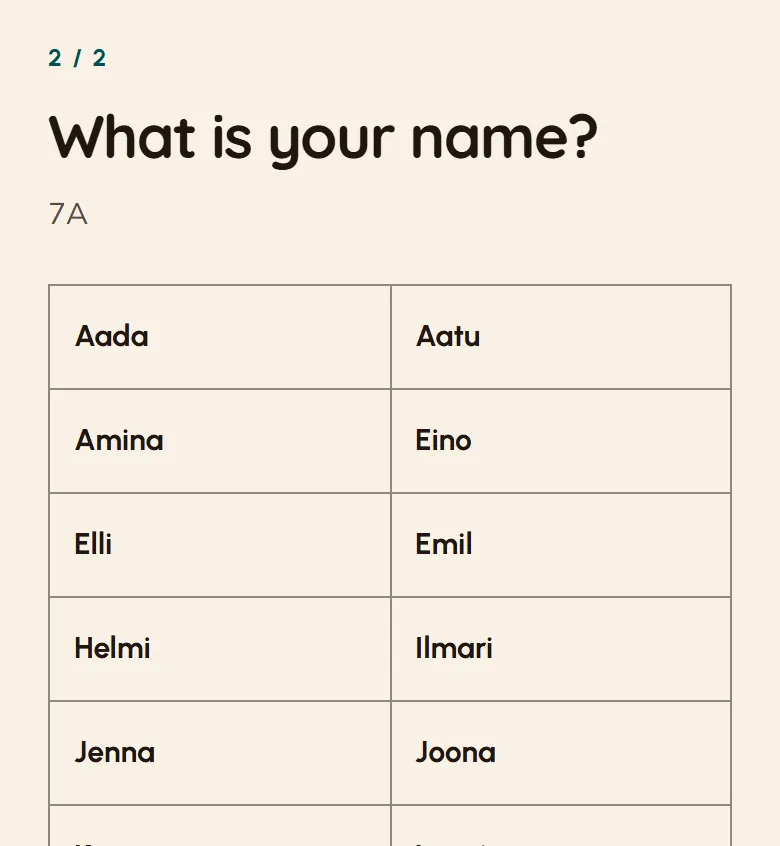
A student enters the code or scans the QR code, then picks their name from the teacher’s roster. No account or installation is needed; Lapmin runs in a browser. If that name is already in the lesson on another device, the teacher decides whether the student can continue on the new one.
- 3
The teacher sees and acknowledges raised hands
Students can raise a hand in their own view, and it appears in “Needs you”. After checking in with the student, the teacher acknowledges the row to clear it from the list. The student then sees “Your teacher saw”.
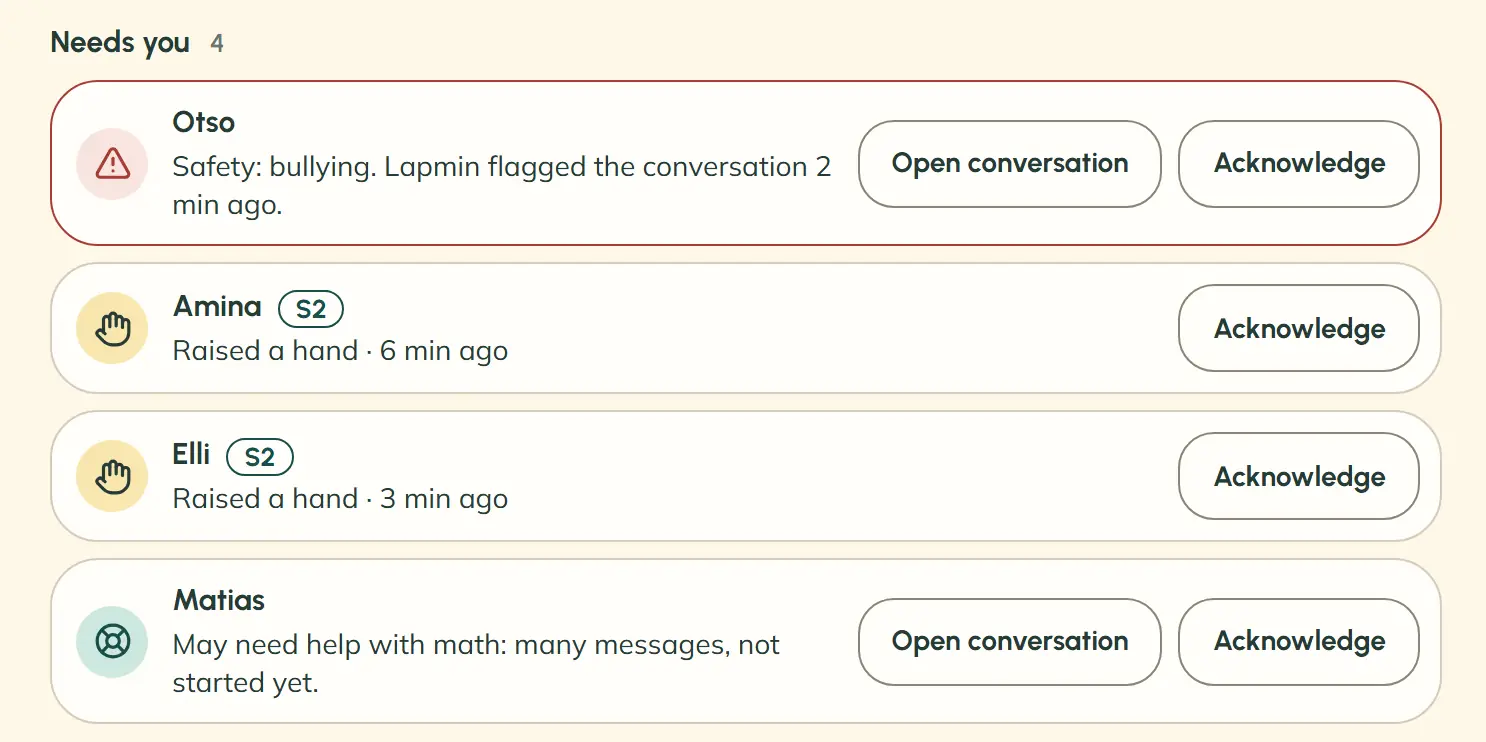
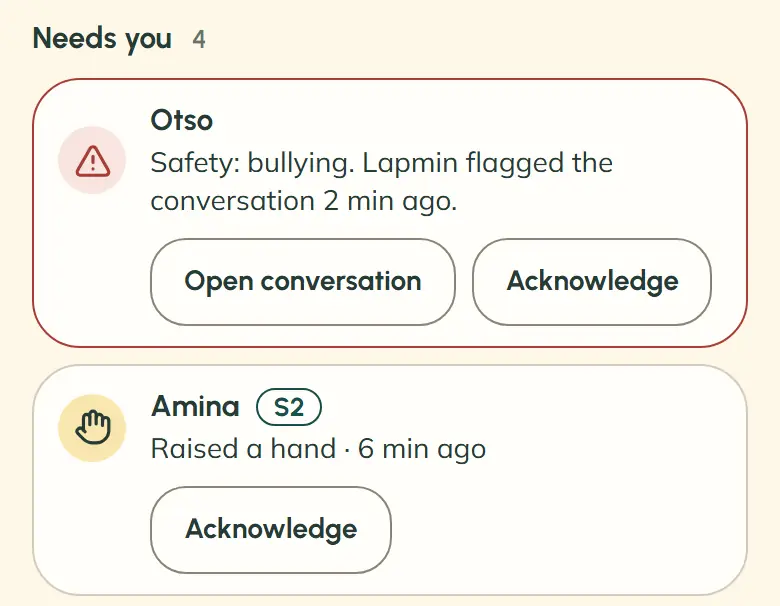
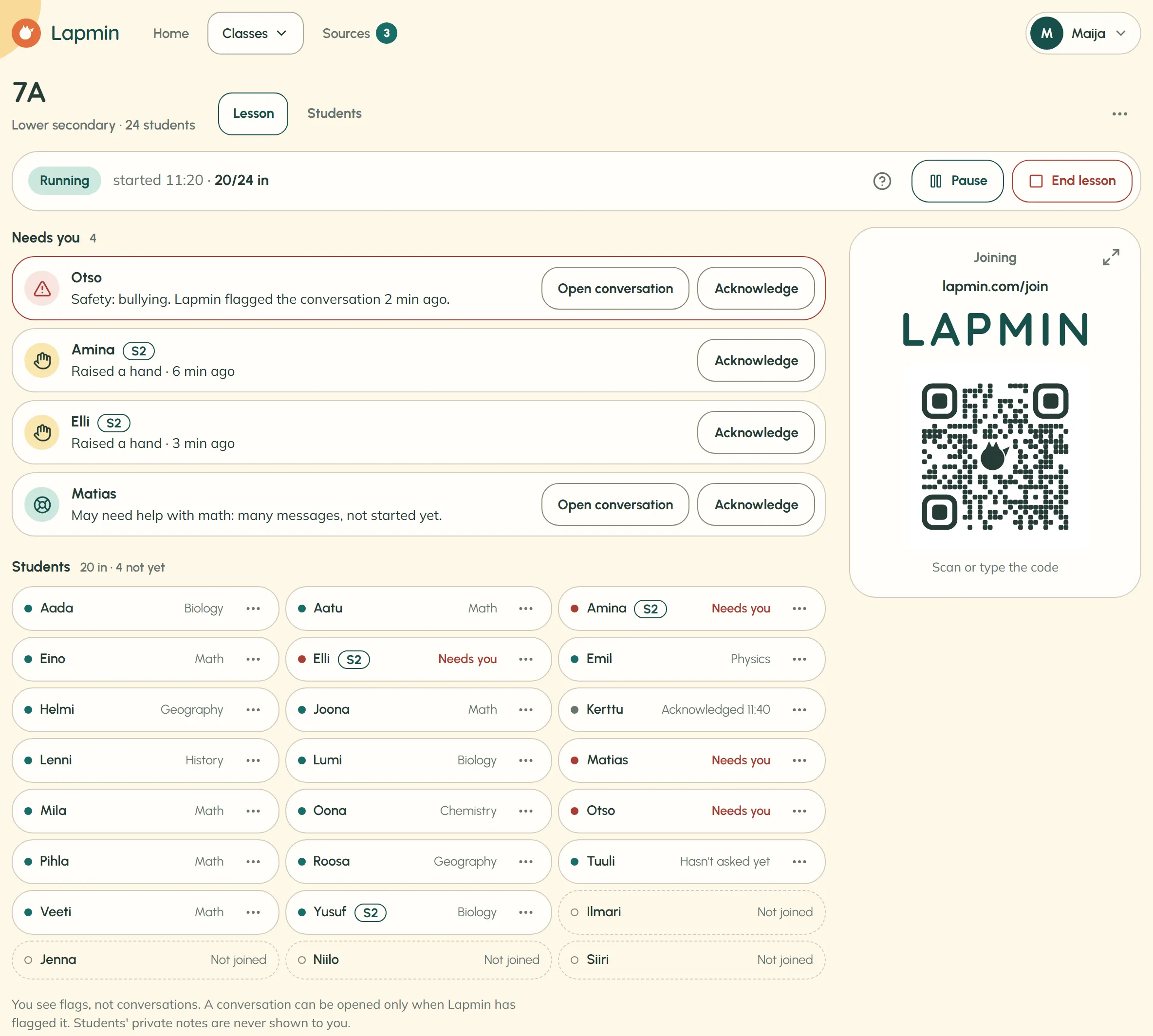
The teacher dashboard shows lesson status, the “Needs you” list and the class roster
At the top, teachers see whether the lesson is running, when it started and how many students have joined. The list of students who may need them is headed “Needs you” in Lapmin.
Beside each name, the roster shows one short detail, such as a subject or “Hasn’t asked yet”. Only the teacher sees the S2 mark, which in Finland identifies a student studying Finnish as a second language. If a conversation has repeatedly drifted away from schoolwork, the roster says “Off track”; that alone does not add the student to “Needs you”.
Lapmin checks a student’s message before replying
When a message clearly raises a safety concern, Lapmin sends a prepared reply and puts the student on the “Needs you” list. The row gives a reason, such as bullying. If the check cannot be completed, Lapmin asks the student to wait a moment instead of answering the question.
Frequently asked questions
What happens if a student switches devices during a lesson?
A join attempt appears in “Needs you” because the name is already in the lesson. If the teacher allows it, the student can choose their name again within ten minutes and continue on the new device. That student’s earlier conversations from the lesson are deleted, while their private Notes remain.
What remains after a lesson ends?
The conversations are deleted; the class, roster and students’ private Notes remain. A new website suggested during the lesson may still await teacher review, but the student’s question is not stored with that suggestion.
Does Lapmin replace the teacher?
No. Lapmin answers students’ questions and guides them through tasks, while the teacher leads the lesson. The list shows who may need the teacher’s help.
Interested?
Your message goes to team@lapmin.com, and we’ll reply by email. We can then arrange a demo or a pilot.